Guide Steps
General Informatioin
CMIS Payroll is a very comprehensive payroll, job costing, and accounting system that offers hundreds of options and configurations to meet your needs.
This help guide is designed to help you understand the general concepts. Please contact ECL support for specific configurations that you may have.
Creating an Employee Contact (General)
- Navigate to Contacts > Detail View
- From the Contact General View screen, click New.
- Under the Contact & Connections tab, enter the following information:
- Company or Formal Name: your company name
- Type: Employee
- Status: Active
- First Name: their first name of the employee
- Last Name: their last name of the employee
- Under Communication Connections: enter Email and Phone information.
- Under Geographical Addresses, enter two addresses:
- Their Work Address (that is, the Label is Work)
- Their Home Address (that is, the Label is Home)
Employee Contact Special Information
Obviously Employees have many other data points than a “normal” contact. To view all these Navigate to Contacts > Special.
In the Contacts Employee Special Screen, there are at least 8 main areas (note: CheckHQ Settings is not used at this time) they are:
- General is for Reference Information, includes some default accounting and job-cost codes, and provides a reference to all company benefits and deductions.
- Tax Info is for just that W-4 information, validation of how the Payee will appear on Payroll Checks, and, of course, this employee’s tax identification number.
- Pay is where this employee’s pay rates are recorded, the benefits and Deductions they receive, commission calculations (if applicable), and bank account information for auto deposits.
- Human Resources has more information about an employee, such as date of birth, pay history (promotions and pay changes), training they have completed, equipment assigned to them, new-hire checklist, Reviews, and any other specific documents or files associated with this employee.
- History is simply a list of Checks and the Details of those checks this employee has.
- Additional is primarily shows which employees this employee supervises.
- Notes is just that a place to write notes about this employee.
- Check List is a checklist of items that are needed from an employee as identified in the Company setups.
Employee General
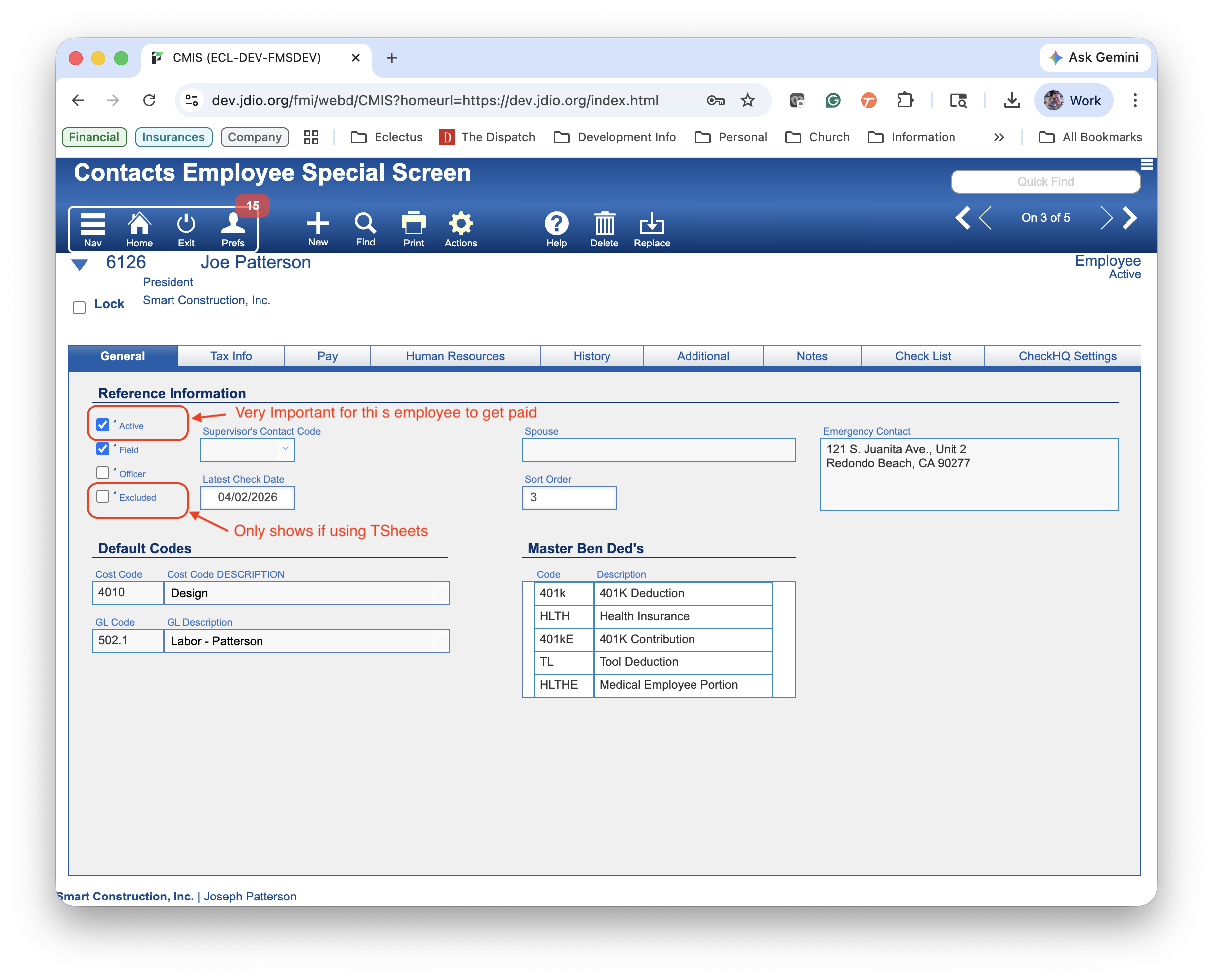
In the Contacts Employee Special Screen General tab some key information:
- Under Reference Information
- It is important that every active employee has the “Active” flag checked! This “Active” flag is specifically for payroll; that is, if you plan to pay this employee, this flag must be checked. This is also the flag that is used by the TSheets integration to sync employees in CMIS to Team members in TSheets.
- The Excluded flag, this only displays when TSheets is turned on in Company Setups. This flag indicates that, if checked, this employee should be synced with TSheets because their time is tracked elsewhere.
Employee Pay (Contract Employees)
There is a lot to discuss here. From multiple pay rates, to benefits and deductions, and more. However, for now, we’re going to show only the new Pay Type information.
CMIS Payroll now supports Contract employees. Contract employees are employees that you hire from an outside service. The employee is technically not your employee, but is employed by another company that you have contracted with.
If this is the case, under Pay Type, check Contract. When you check this, two other fields appear: Contractor Contact Code and Contractor Name. In the Contractor Code dropdown, select the company that you have contracted with for this employee.
The effect will be that during Payroll Processes, these employees will not have Taxes or any other burdens or deductions applied. Their pay will be the number of hours they worked multiplied by their hourly rate. Furthermore, when their time is “Charged To Jobs,” it will create an offline check payable to the contracting company.
