Guide Steps
Turn on Option in User Preferences
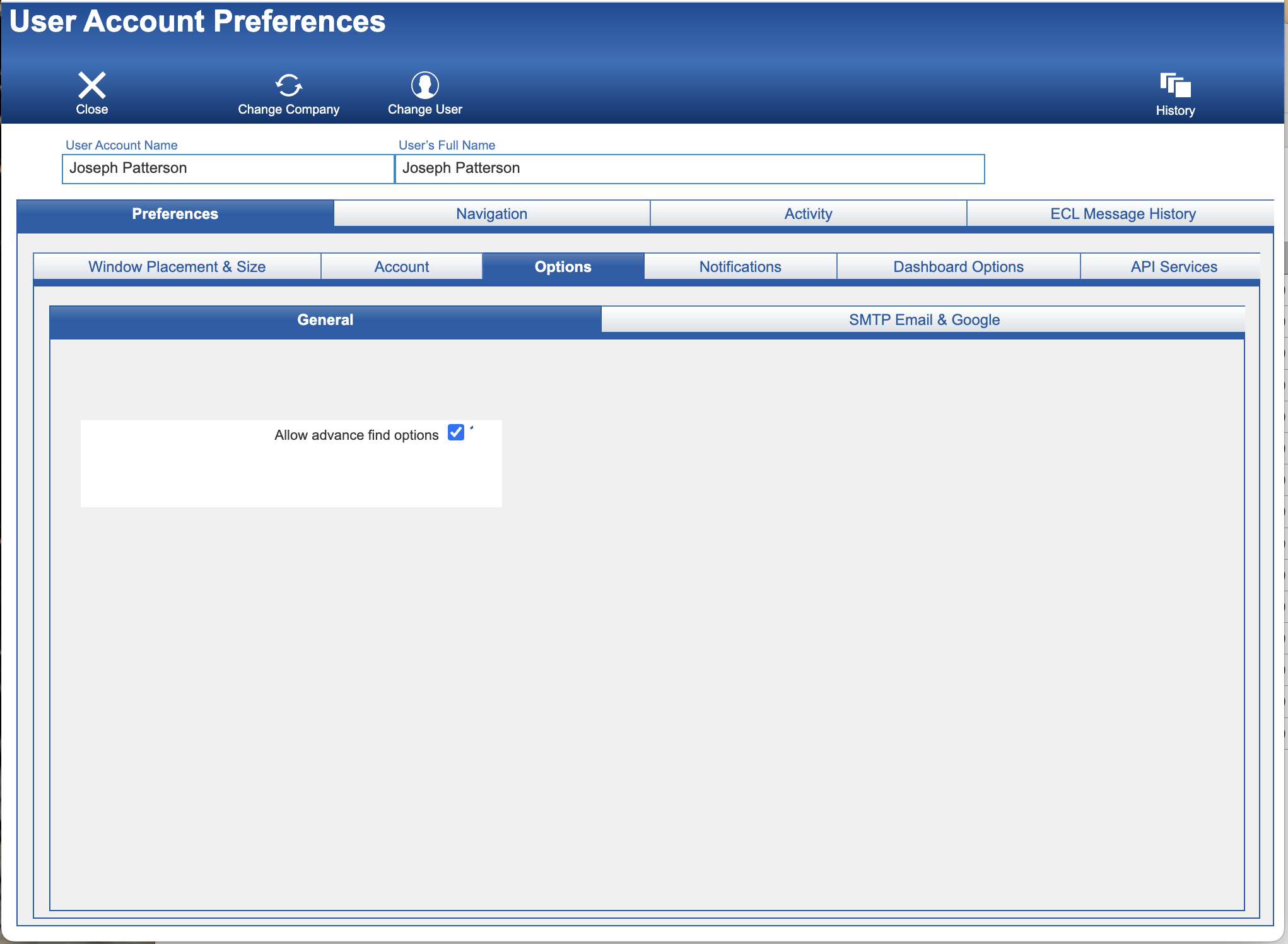
- Click on the Prefs user button from any screen.
- In the User Account Preferences screen, select Allow advance find options under Preferences > Options > General.
1
About
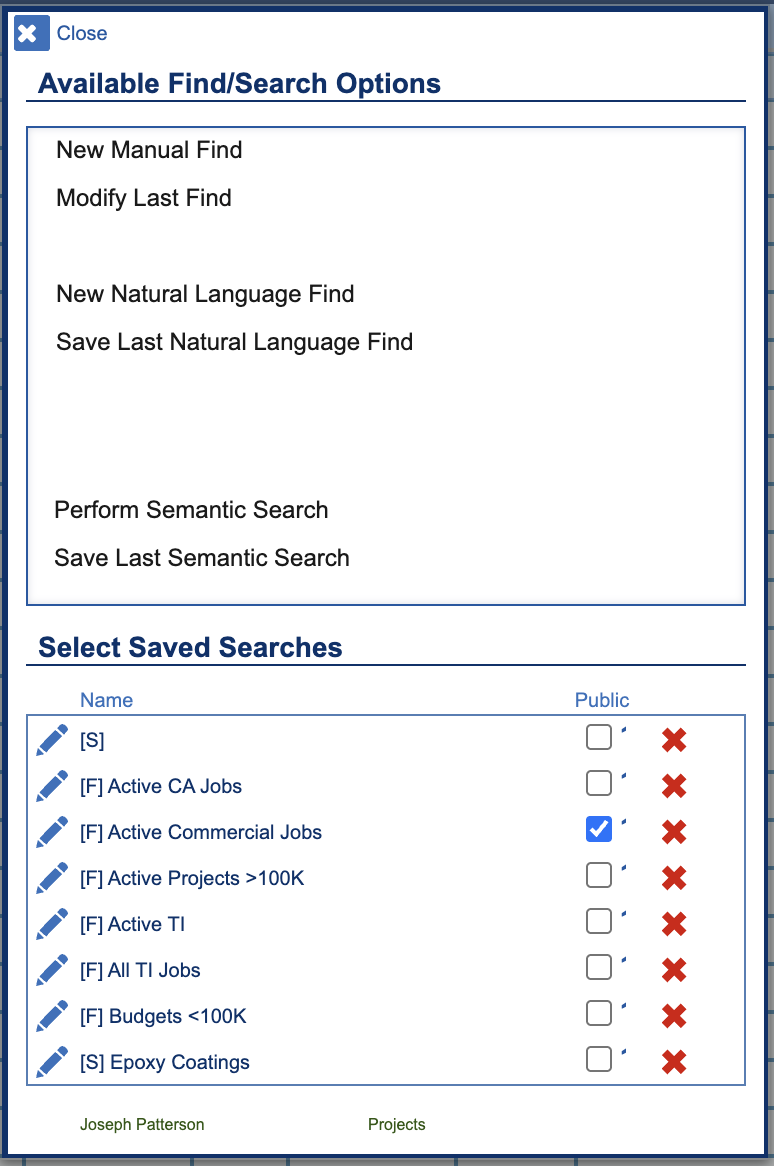
Advance Find Options allows users to do the following:
- New Normal Find – This is the typical find that puts the user in “Find Mode” to enter the criteria in the desired fields.
- Modify Last Find – This allows the user to change the most recent find request within the layout they are currently in.
- New Natural Language Find – This opens a new card window, allowing users to type, in natural language, what they are searching for and have the system perform the find.
- Save Last Natural Language Find – This feature allows users to save their last performed Natural Language Find, enabling it to be used again. It will appear under the “Saved Searches” area.
- Modify Last Find (showing ind layout) – Natural Language finds are performed on their own unique layouts, so that one layout can have multiple relationships to search on. This will direct the user to that layout, allowing them to view the last find. NOTE: This is a “Raw” layout of fields and portals. Caution should be used when on this layout. Use the Navigation button to return to your desired location.
- Perform Semantic Search – This opens a new Semantic Search card window. Semantic searches are best for text and can be more useful than looking for literal keyword matches. For example, if you had a Project description of “four-story apartment with center atrium and underground parking”, a Semantic Search could find that project by searching for “apartments with gardens in the middle.”
- Save Last Semantic Search – This feature enables users to save their most recent Semantic Search, which will also be listed under the “Saved Searches” area.
2
Notes
- Saved Searches are user-based unless the user checks the “Public” box.
- Under “Select Saved Searches,” a [S] indicates that this is a saved search that is a Semantic Search, and a [F] is a Natural Language Find search.
3